Your weekly collections review
Find open customer balances and decide which records need attention.
 ExcelCraft
A WORKBOOK FOR YOUR WORKING DAY
Know what has been paid and what still needs attention. Keep invoices and receipts connected, review overdue balances, and follow customer collections over the year.
No sign-up · Local browser editing
FROM ACTIVITY TO UNDERSTANDING
An invoice and a payment are different events. Record them separately, connect them with a stable invoice ID, and review the balance at your chosen date.
Allocate each payment to an invoice. Multiple receipts can contribute to the same balance, so a partial payment does not need a second invoice.
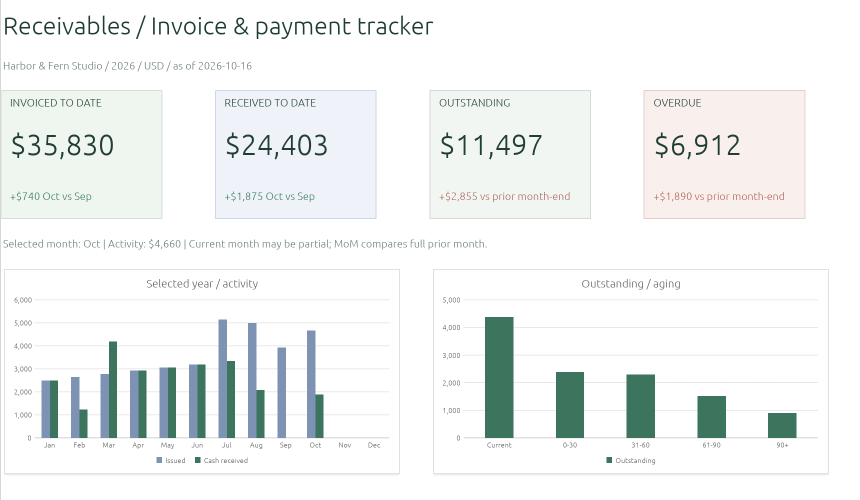
Review outstanding amounts, overdue balances, and customer aging. Use the reporting date to distinguish what is due now from later activity.
Use Checks to investigate duplicate invoice IDs, unmatched payments, date problems, and overpayments before contacting a customer.
INSIDE YOUR WORKBOOK
Reports, inputs, and controls have their own place. Begin with the example and use Instructions to understand the fields and input limits.
Dashboard balances, customer balances, and Aging include all issue years through As Of. Monthly activity and the selected-year figures in Annual use the reporting year.
Stable invoice IDs and a dated row for each allocated receipt.
Customer records for a consistent view of outstanding amounts.
Outstanding balances grouped by time to or since the due date.
Company, reporting year, selected month, currency unit, and As Of date. Year selects activity reports; it does not remove older invoices from portfolio balances.
Investigate flagged inputs and reconcile the totals to their supporting detail.
Field guidance, assumptions, and checks. Business input tables support 500 rows; review the instructions before extending them.
MAKE IT PART OF YOUR ROUTINE
Bring your next customer follow-up into focus.
Find open customer balances and decide which records need attention.
Keep the original invoice and add each receipt separately.
Review balances using the As Of setting, rather than mixing in later receipts.
YOUR FIRST FEW MINUTES
Open online to explore fictional records, or start blank to enter your own. Both use the same workbook structure.
Review Settings, including the year, month, currency unit, and As Of date.
Use a unique, stable invoice ID. Record each allocated receipt separately; split a payment that covers several invoices.
Review exceptions and customer balances. Use Export XLSX in the editor to keep your changes.
A FEW PRACTICAL ANSWERS
Keep the reporting context clear, review the checks, and keep a copy of your work.
Add a Payments row for each receipt using the same Invoice ID. The workbook brings those receipts together when calculating the invoice balance as of your reporting date.
No. Dashboard, Customers, and Aging keep the portfolio across all issue years through As Of. Monthly shows selected-year invoice and receipt activity; Annual separates portfolio totals from selected-year totals. Changing the year does not hide an older unpaid invoice.
An invoice is overdue when its due date is before As Of and it has an outstanding balance. Current means due after As Of; 0–30 includes due today, followed by 31–60, 61–90, and strictly more than 90 days. Due today is not yet overdue. Future receipts do not reduce the current balance.
You supply stable invoice IDs and review duplicate warnings. The tracker provides workbook statuses for follow-up; it does not generate invoices, collect payments, or email customers. Customer payment terms are a reference; enter the agreed due date on each invoice.
Review Checks and the supporting payment records. Allocate the receipt to the correct invoice and investigate overpayments separately rather than using them to hide another customer’s balance.
The example contains fictional business activity so you can explore the reports and formulas. Start blank keeps the workbook structure for your own records.
Use Export XLSX inside the editor before closing the tab, then reopen the exported copy and check the figures. There is no automatic cloud save.
Use one currency consistently within a workbook. The files use USD ($) number formats. Changing the currency label does not update those formats. It does not convert exchange rates or consolidate currencies. Change number formats manually for another currency.
ExcelCraft uses the alpha-stage GridCraft engine. Recalculation, charts, formatting, and XLSX import/export can vary. Review a saved copy before relying on important figures; exact Excel or Google Sheets compatibility is not promised.
YOUR NEXT BUSINESS REVIEW
Explore the example, inspect the formulas, and make it your own.
Your workbook stays in this browser while you edit. Use Export XLSX in the editor to keep your work. Review formulas, totals, and the exported copy before using important figures. How local files are handled.
Original ExcelCraft workbook design and fictional sample data · CC0. Manual records; no bank connection, automatic cloud save, or collaboration.
WORK WITH THIS FILE
KEEP THE WORK MOVING
Profitability, collections, and paid spending answer different questions. These are separate workbooks; records do not synchronize between them.