A monthly spending review
Look across vendors and categories instead of reading the ledger line by line.
 ExcelCraft
A WORKBOOK FOR YOUR WORKING DAY
Give everyday spending a useful structure. Record paid expenses and refunds, compare categories with your budget, and see how the year is taking shape.
No sign-up · Local browser editing
FROM ACTIVITY TO UNDERSTANDING
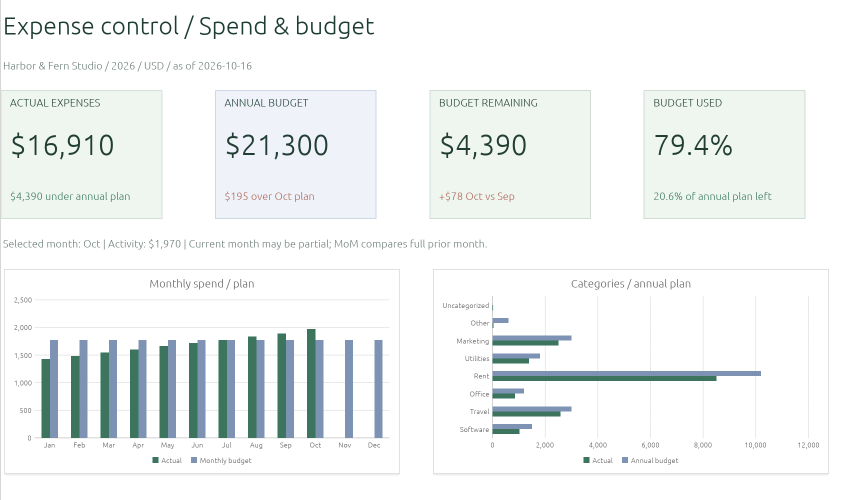
A list of transactions tells you what happened. Category reports, a budget comparison, and a monthly trend help you see what deserves a closer look.
Record the date, category, vendor, payment method, and reference together. Keep vendor refunds visible as negative adjustments.
Use an annual category budget for the reporting year. The monthly plan is annual budget divided by 12; review remaining budget and the direction of the spending trend.
Use Checks to find missing dates, category problems, and adjustments that need attention. Review the reconciliation before using the totals.
INSIDE YOUR WORKBOOK
Reports, inputs, and controls have their own place. Begin with the example and use Instructions to understand the fields and input limits.
Monthly and Annual use the selected reporting year. Actuals stop at As Of. Future actual months are blank in charts; report totals retain zeros for reconciliation. Category totals include visible Other and Uncategorized amounts.
Paid spending, vendors, methods, references, and refund adjustments.
Annual category plans with their own year. Only matching-year budgets feed the reports; monthly plan is annual budget divided by 12.
Company, reporting year, selected month, currency unit, and As Of date. There are seven category slots; keep Other as the final fallback.
Investigate flagged inputs and reconcile the totals to their supporting detail.
Field guidance, assumptions, and checks. Business input tables support 500 rows; review the instructions before extending them.
MAKE IT PART OF YOUR ROUTINE
See where the spending goes, and how it compares.
Look across vendors and categories instead of reading the ledger line by line.
See which categories differ from the plan and return to the supporting entries.
Keep the original category and reference so the negative adjustment has a clear explanation.
YOUR FIRST FEW MINUTES
Open online to explore fictional records, or start blank to enter your own. Both use the same workbook structure.
Review Settings and use consistent category names. Keep all amounts in the selected currency unit.
Enter paid expenses with dates and references. Record vendor refunds as negative amounts, and keep the annual plan in Budget.
Compare monthly and annual reports, review Checks, and use Export XLSX in the editor before closing.
A FEW PRACTICAL ANSWERS
Keep the reporting context clear, review the checks, and keep a copy of your work.
Enter a negative expense amount dated when the refund was received. Keep the original category and a receipt or payment reference so you can trace the adjustment. A missing refund reference produces a warning; the dated numeric refund remains in actuals.
Settings has seven category slots. Rename the first six if needed and keep Other as the seventh fallback. Use matching names in your records and budget. Unknown pasted categories map to Other; empty categories remain visible as Uncategorized. Adding slots requires workbook changes.
This version stores annual budgets with their own year and category. Monthly plan is the matching-year annual budget divided by 12. It does not store a separate seasonal budget for each month.
It records references and manually entered expense details. It does not store receipt images, scan documents, synchronize a bank account, or approve reimbursements.
The workbook supports management tracking. A category label does not determine tax deductibility, and the workbook does not prepare a tax return.
The example contains fictional business activity so you can explore the reports and formulas. Start blank keeps the workbook structure for your own records.
Use Export XLSX inside the editor before closing the tab, then reopen the exported copy and check the figures. There is no automatic cloud save.
Use one currency consistently within a workbook. The files use USD ($) number formats. Changing the currency label does not update those formats. It does not convert exchange rates or consolidate currencies. Change number formats manually for another currency.
ExcelCraft uses the alpha-stage GridCraft engine. Recalculation, charts, formatting, and XLSX import/export can vary. Review a saved copy before relying on important figures; exact Excel or Google Sheets compatibility is not promised.
YOUR NEXT BUSINESS REVIEW
Explore the example, inspect the formulas, and make it your own.
Your workbook stays in this browser while you edit. Use Export XLSX in the editor to keep your work. Review formulas, totals, and the exported copy before using important figures. How local files are handled.
Original ExcelCraft workbook design and fictional sample data · CC0. Manual records; no bank connection, automatic cloud save, or collaboration.
WORK WITH THIS FILE
KEEP THE WORK MOVING
Profitability, collections, and paid spending answer different questions. These are separate workbooks; records do not synchronize between them.